


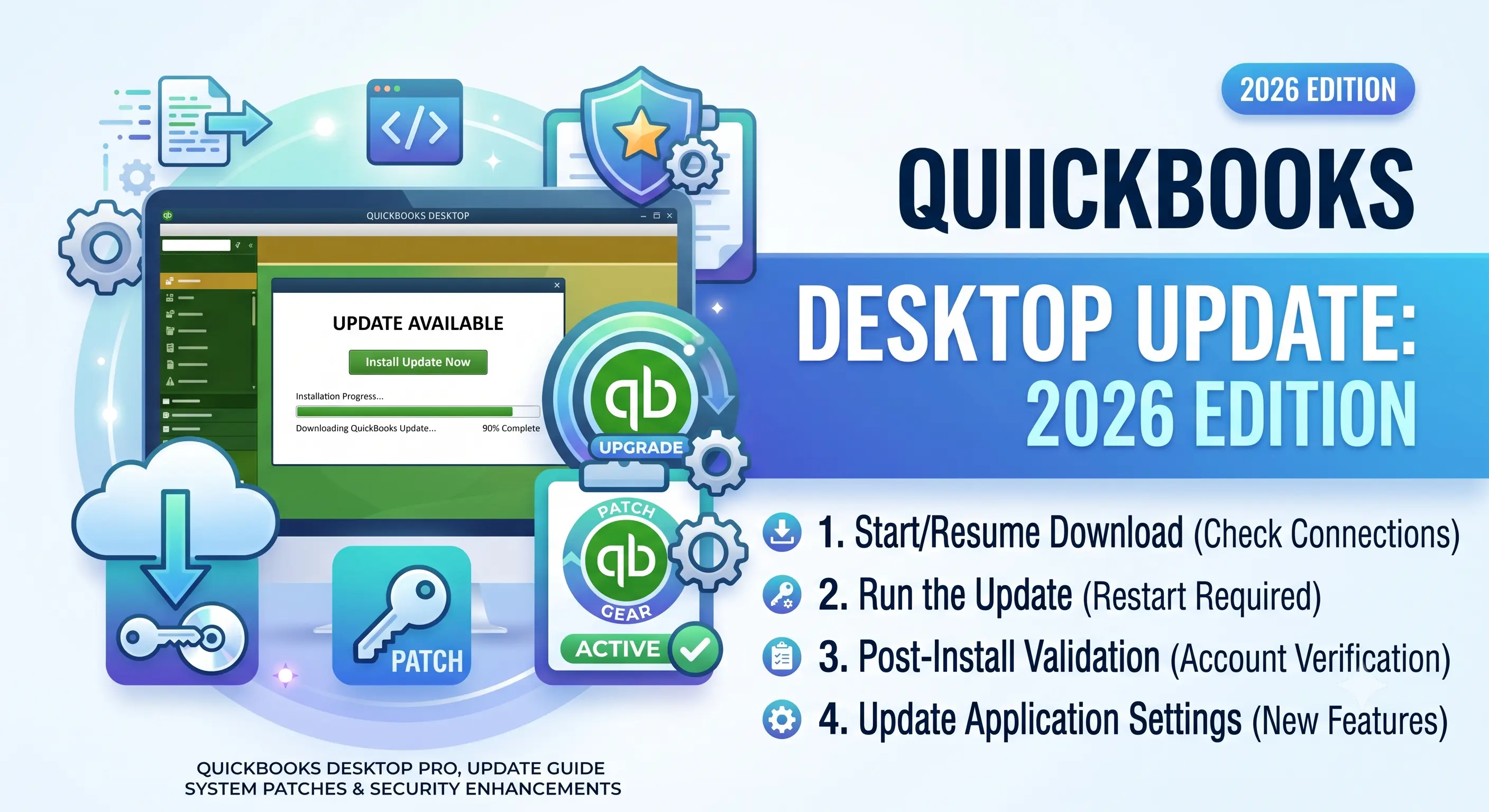
Why QuickBooks Desktop Release Updates Matter
QuickBooks Desktop ships incremental “release” updates (R1, R2, R3…) between annual versions. These aren’t optional cosmetic patches — they fix payroll tax table calculations, bank feed connection errors, multi-user sync bugs, and security vulnerabilities. Running an outdated release is one of the most common causes of QuickBooks crashing during payroll runs or failing to connect to company files over a network.
How to Check Your Current Release Number
Before updating, confirm your installed version and release:
- Open QuickBooks Desktop
- Press F2 (or Ctrl+1) to open the Product Information window
- Note the version and release number displayed at the top (e.g., “Enterprise Solutions 24.0, Release 6”)
Update Method 1: Automatic Update (Recommended)
- Go to Help > Update QuickBooks Desktop
- Select the Update Now tab
- Check Reset Update to clear previous partial downloads
- Click Get Updates
- Once complete, close QuickBooks and reopen — accept the install prompt
- Restart your computer if prompted, especially after major release jumps
Update Method 2: Manual Download (For Network or Multi-User Environments)
In office environments running QuickBooks over a shared network, updating each workstation individually is inefficient. A manual patch download lets IT admins push one file across all machines:
- Download the correct release patch matching your exact QuickBooks year and edition
- Close QuickBooks on all workstations
- Run the downloaded patch as Administrator on the server/host machine first
- Repeat on each workstation, or push via network deployment tools
- Reopen the company file to confirm the update applied
QuickBooks Desktop Edition & Release Compatibility
Update requirements differ by edition. Enterprise in particular requires exact release-matching across all networked workstations to avoid company file version conflicts.
| Edition | Typical Release Cadence | Multi-User Sync Requirement | Manual Update Recommended |
|---|---|---|---|
| Pro Plus | Quarterly maintenance releases | Same release across all users | Optional, 1-5 seats |
| Premier Plus | Quarterly maintenance releases | Same release across all users | Optional, 1-5 seats |
| Enterprise | Monthly to quarterly releases | Strict — mismatched releases block file access | Required for networks of 5+ seats |
If you’re still running an unsupported year version (QuickBooks discontinues updates roughly three years after release), the update tool may stop returning results entirely. In that case, a fresh license for the current QuickBooks Desktop year is the only path back to active support and tax table accuracy. Genuine QuickBooks Desktop Pro Plus, Premier Plus, and Enterprise licenses are available through WindowsKeyShop with instant key delivery, avoiding the wait on Intuit’s own checkout queue during tax season.
Troubleshooting Failed Updates
Update Stuck or Frozen
Close QuickBooks via Task Manager, delete temporary update files in the QuickBooks install folder, and re-run Reset Update before retrying.
“This Company File Needs to Be Updated” Loop
This typically means one networked workstation is on an older release than the host server. Verify every machine matches the exact release number from Help > About QuickBooks.
Update Completes But Version Number Doesn’t Change
Some installations require a full computer restart — not just closing QuickBooks — before the new release number registers correctly.
Before You Update: Backup Checklist
- Create a full company file backup (File > Back Up Company > Create Local Backup)
- Confirm all users are logged out of the company file
- Note your current release number in case rollback is needed
- Schedule updates outside business hours for multi-user networks
If your update fails repeatedly due to an expired or invalid license activation, WindowsKeyShop offers replacement and upgrade licenses for all current QuickBooks Desktop editions, with support for reactivation issues tied to hardware changes.
Frequently Asked Questions
How often does QuickBooks Desktop release updates?
Typically quarterly for Pro and Premier, more frequently for Enterprise, plus urgent patches for critical security or tax table issues.
Do I lose data when updating to the latest release?
No, release updates do not affect company file data, though a backup beforehand is still standard practice.
Can I skip releases and jump straight to the latest one?
Yes, QuickBooks installs the cumulative latest release regardless of how many versions you’ve skipped.