



QuickBooks Pro 2019 support for connected services and live assistance ended in 2022, although an existing installation may still open a company file on a compatible computer. Businesses that depend on payroll, bank feeds, security updates, or supported integrations should normally plan a tested move to a supported setup. Verify the license terms, Windows compatibility, users, required services, backup, and conversion path before spending money.
Is QuickBooks Pro 2019 still supported?
No. Intuit’s service-discontinuation cycle ended access to connected services and live support for QuickBooks Desktop 2019 after May 31, 2022. That distinction matters: a locally installed copy may still start, and an existing company file may still be readable, but “the program opens” is not the same as “the product is supported.” Payroll services, bank connections, payment integrations, technical support, registration options, and compatibility with newer operating systems can be unavailable or unreliable.
Intuit’s current guidance also states that discontinued products cannot be registered for the first time. A previously registered customer may be able to re-register a discontinued version, but that is a different situation from buying an old key for a new installation. If a listing does not clearly explain whether the license is new, previously registered, transferable, and eligible for activation, pause before paying.
Should you keep QuickBooks Pro 2019, replace it, or upgrade?
| Situation | Most practical direction | Main risk to check |
|---|---|---|
| A single offline PC, no payroll or bank feeds, stable existing file | Keep temporarily while planning a supported replacement | Hardware failure, reinstallation, and unsupported Windows changes |
| Payroll, payments, bank feeds, or other connected services are required | Move to a supported Intuit product or another supported accounting platform | Service interruption and unsupported tax or security changes |
| Multiple users depend on a shared company file | Plan a controlled migration with your accountant or IT provider | Version mismatch, permissions, database-server setup, and downtime |
| Buying QuickBooks for the first time | Choose a product that the publisher currently supports | Unregisterable or misrepresented legacy licenses |
Compatibility checks before changing versions
QuickBooks Desktop 2024 has materially different requirements from a 2019 installation. Intuit’s published requirements specify a 64-bit Windows operating system, an x86 Intel or AMD processor, at least a 2.4 GHz processor, 8 GB of workstation RAM, and 2.5 GB of disk space plus room for company files. Intuit recommends 16 GB of RAM and an SSD for stronger performance. Native Windows is required; Linux, Windows S mode, emulators, and virtual environments are not supported in the listed requirements.
Do not rely on a seller’s “works on Windows” statement. Confirm the exact Windows edition, 64-bit status, processor type, available memory, storage, Microsoft Office integration needs, and network configuration. For a multi-user environment, check the server operating system and RAM separately. If any workstation is ARM-based, treat that as a blocker until the publisher explicitly confirms support.
Services are a separate compatibility decision
Software installation is only one layer. List every external service the accounting workflow needs: payroll, tax forms, bank transaction downloads, merchant payments, invoice email, document attachments, Outlook or Excel export, accountant access, remote hosting, inventory scanning, and automatic backup. A program may open while one or more of these connected functions remain unavailable.
A safer company-file backup and conversion plan
Intuit explains that a company file must be updated when it is opened in a newer annual version. Treat conversion as a one-way production change. Create a verified backup before the upgrade, keep the pre-conversion backup in a clearly named folder, and never test the only live copy of the file. In a multi-user setup, all users should sign out before the administrator starts the process.
- Document the current environment. Record the product name, year, release number, Windows version, company-file location, user count, connected services, custom templates, and critical integrations.
- Create a local backup. Use QuickBooks’ backup function and enable complete verification. Also preserve related payroll folders when applicable.
- Make a second independent copy. Store it on a separate encrypted drive or approved backup location. A shortcut pointing to the same disk is not a second backup.
- Install and test away from production. Confirm that the new environment meets system requirements and that the correct edition is installed.
- Convert a copy of the file. Check balances, open transactions, inventory quantities, customer and vendor lists, custom forms, permissions, and key reports.
- Schedule the cutover. Stop new entries in the old file, convert the latest verified copy, and keep the older software and backup available until the accountant signs off.
Intuit notes that transactions entered after conversion cannot simply be merged back into the old company file. That is why a test, a cutoff time, and a rollback copy matter more than a fast installation.
Run an upgrade rehearsal before changing the live books
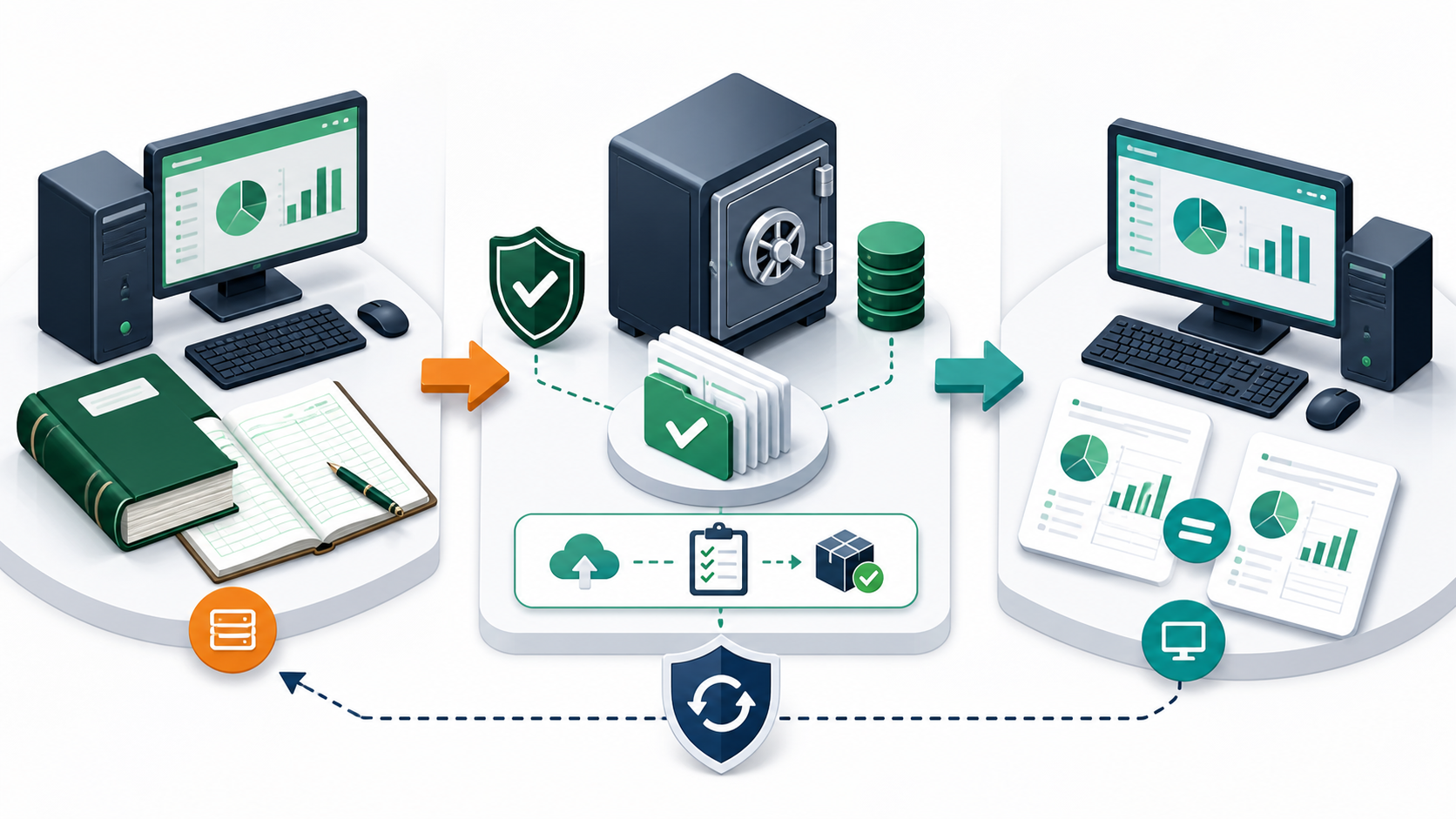
A company-file conversion should be treated like a small accounting project, not an ordinary software update. Create a written baseline before opening the file in a newer version: the fiscal period, last reconciliation date, open invoices, unpaid bills, inventory value, sales-tax liabilities, payroll liabilities, retained earnings, user list, custom forms, memorized reports, and every connected add-on. Export or print a trial balance, balance sheet, profit-and-loss statement, accounts receivable aging, accounts payable aging, and inventory valuation report for the same date.
Use a copy of the company file on a test computer that meets the newer version’s requirements. Allow the application to convert only the copy. Never overwrite the only working file, and remember that a converted file generally cannot simply be opened again in the older release. After conversion, compare the reports line by line, open a sample of recent transactions, test attachments and custom forms, confirm user permissions, and verify that the accountant can access the version. If payroll, payments, bank feeds, or third-party inventory tools are essential, test each integration separately before scheduling the production change.
Define a rollback point and a decision owner. If balances differ, the file fails verification, or a critical integration does not work, stop and return to the untouched production environment while the cause is investigated. Keep the old computer and application available in read-only form until the next reconciliation and reporting cycle is complete. The small amount of extra preparation is cheaper than discovering a data or workflow problem during payroll, tax filing, or month-end close.
Schedule the final conversion after a verified backup and outside the busiest accounting window. Tell users when data entry must stop, who can approve the converted file, and which reports must match before work resumes. Record every conversion message and correction. If professional assistance is needed, share copies through a secure approved method and retain control of the original file.
QuickBooks purchase checklist
- Exact product, version, and edition: Pro, Premier, and Enterprise are different products; Manufacturing & Wholesale is an edition, not merely a label.
- Publisher support status: verify it on Intuit’s current support pages, not a cached marketplace description.
- License terms: ask whether the offer is a subscription, perpetual license, upgrade entitlement, transfer, or previously registered license.
- Activation eligibility: confirm whether the software can be registered for the first time and what happens after a hardware replacement.
- User count: match the purchased entitlement to the number of simultaneous users and the network design.
- Operating system: compare every workstation and server against the publisher’s exact system-requirements page.
- Connected services: verify payroll, bank feeds, payments, email, remote access, and third-party apps separately.
- Delivery and refund terms: require a written invoice, delivery method, support contact, and a clear remedy if activation fails.
Compare current QuickBooks Desktop listings
Use the checklist above before ordering. Confirm current publisher support, license terms, user count, Windows compatibility, and any services your business requires.
Questions buyers ask
Can a QuickBooks Pro 2019 company file be opened in QuickBooks Desktop 2024?
Intuit provides a company-file upgrade process for older files, but conversion should be performed on a verified copy. Some older files may need an intermediate-version step, and the converted file should not be treated as backward compatible. Test it before replacing the production file.
Is a cheap QuickBooks key automatically a good value?
No. Price is only one part of the cost. An unsupported, unregisterable, incorrectly licensed, or incompatible copy can create migration work and downtime that exceeds the purchase price. Value depends on valid license terms, support status, compatibility, and a workable recovery path.
Can I keep using QuickBooks Pro 2019 without connected services?
An existing installation may continue to run locally, but support and compatibility risks increase over time. Maintain verified backups, avoid changing the only working environment without a rollback plan, and discuss the timing of a supported replacement with your accountant.
QuickBooks Pro 2019 decision recap
Use this QuickBooks Pro 2019 checklist to decide whether continued offline use is acceptable or whether a supported replacement and tested company-file migration are safer.