


Quick answer
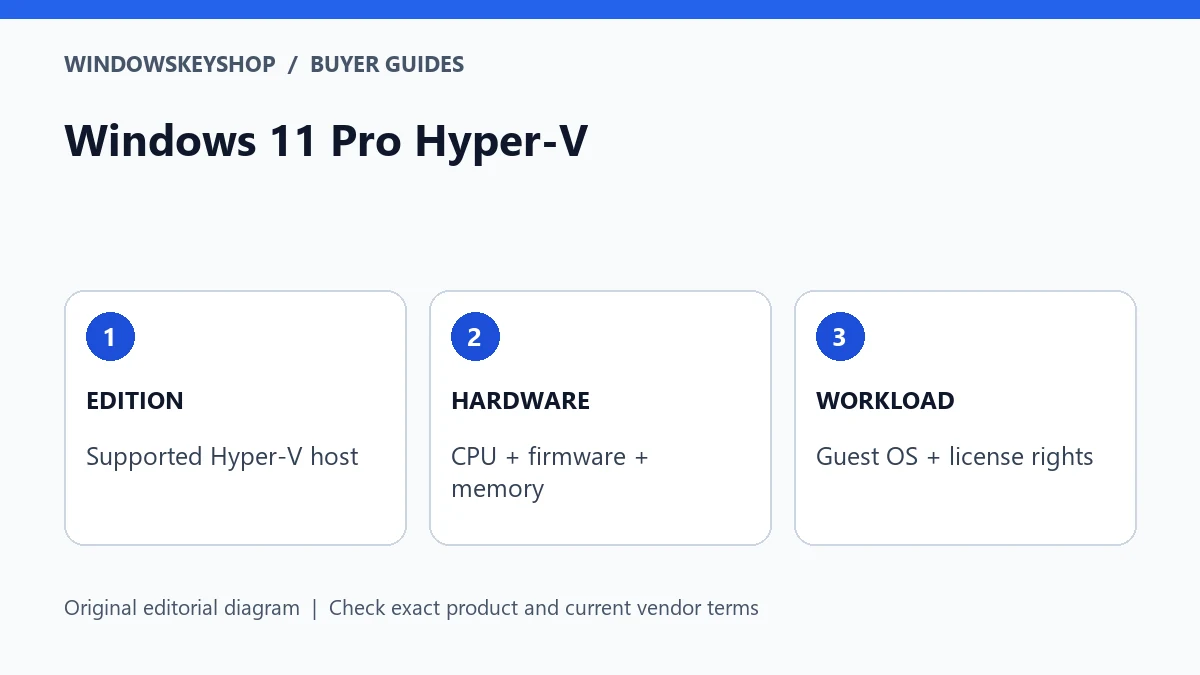
Windows 11 Pro Hyper-V requires a supported Windows edition and compatible hardware; buying a Pro key alone is not enough. Verify processor virtualization support, firmware settings and usable memory. Also distinguish a full virtual-machine management requirement from WSL, and check the operating-system rights for every guest you plan to run.
Start with the workload, not the upgrade
Describe what you need to run. A Linux command-line environment for development, a separate Windows test desktop and a multi-machine network lab are different workloads. They may need different tools, memory allocations and licensing arrangements.
Microsoft documents WSL as a way to run Linux distributions on Windows. The existence of that option means 'I need Linux' does not automatically mean 'I must buy Pro for the full Hyper-V role.' Evaluate the commands, services and isolation your project actually needs.
If you need a conventional managed virtual-machine environment on a supported Windows client edition, Hyper-V can be relevant. Define the expected guest operating systems and what each machine will do before choosing the host edition. Otherwise, it is easy to buy an upgrade and discover that the real obstacle was memory, firmware or an application's requirements.
Seven Windows 11 Pro Hyper-V checks
- Confirm the exact installed host edition and whether the desired Hyper-V role is supported.
- Check for a 64-bit processor with the virtualization capabilities Microsoft lists, including second-level address translation.
- Verify that hardware-assisted virtualization and the required execution protections are available and enabled through the device manufacturer's supported firmware process.
- Budget memory for the host and active guests together. Microsoft's minimum is not a sizing recommendation for your real lab.
- Budget storage for guest disks, checkpoints, installation media and separate backups.
- Check compatibility with your other virtualization tools, development applications and any required game anti-cheat software.
- Establish the license and activation requirements for every guest operating system; do not assume the host's key covers them.
Use system information and the manufacturer's specifications to gather evidence. If a requirement is unclear, resolve it before purchasing. Do not bypass hardware checks or install modified activation tools to turn an unsupported configuration into an apparently working one.
Read hardware evidence carefully
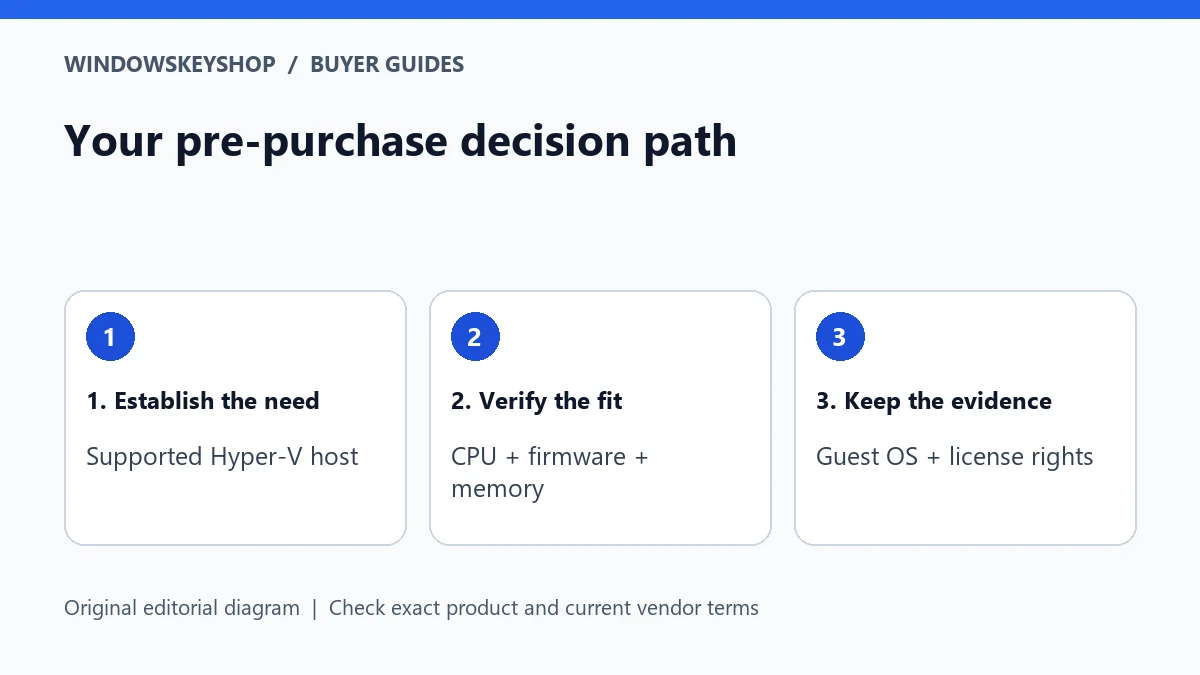
A processor's marketing name is not enough to approve a virtualization build. The exact model, firmware configuration, motherboard support and available system resources matter. Record the complete device specification rather than asking whether an entire brand of CPU is compatible.
Microsoft's Hyper-V hardware guidance describes the required processor and firmware capabilities and provides ways to inspect readiness. Follow the current documentation for the intended host, especially when moving between Windows client and Windows Server guidance. Their management and licensing contexts are not interchangeable.
If system information reports that a hypervisor is already detected, interpret that in context rather than assuming every readiness line must look identical to a fresh installation. Ask a competent administrator if the output is unfamiliar. Sharing a sanitized error message is safer than posting a full system report containing machine or organization details.
Host activation does not settle guest licensing
The host runs the virtualization platform. A guest is a separate operating-system installation inside a virtual machine. Technically creating that guest does not establish a right to use a particular Windows release in it.
Before building a lab, make an inventory with guest name, operating system, purpose, owner and the license or evaluation terms you will use. Development, evaluation, personal and production use can have different conditions. Refer to the applicable product terms or your licensing administrator rather than extrapolating from a key that activates.
This matters when comparing a low-priced Pro upgrade with a complete lab budget. A buyer who needs several licensed Windows guests may face costs and restrictions beyond the host upgrade. Make those visible before payment, not after the lab becomes part of a daily business process.
Memory and storage: a planning example
Imagine a learner who wants one Linux practice environment while keeping a browser and editor open. Compare that with a technician who wants several Windows guests, a test server and snapshots of multiple configurations. These are hypothetical examples, but they show why one minimum-memory number cannot describe both workloads.
For each proposed guest, write down its own published requirements and the resources you intend to allocate. Then leave resources for the host and normal applications. If the sum cannot fit comfortably, changing the Windows edition will not create physical RAM or faster storage.
Keep checkpoints and backups conceptually separate. A checkpoint is part of a virtual-machine workflow; it is not a substitute for a recoverable copy of important work outside the host's failure path. Decide what data you can afford to lose and how you would rebuild the lab before using it for anything valuable.
Set up and test in a controlled order
Back up important host data and retain recovery information before changing optional features or firmware settings. Use the hardware vendor's instructions for firmware changes and your organization's process on managed devices. Do not change unfamiliar security settings just to follow a generic tutorial.
Start with one non-critical guest and a clearly defined task. Confirm that it starts, reaches only the intended network resources and can be shut down cleanly. Record the configuration that worked. Add more guests only after you understand the first one's resource use and recovery process.
If a new conflict appears, identify the last change and consult the relevant application documentation. Randomly disabling security features, switching hypervisors or buying additional keys makes the original cause harder to find. A good lab can be rebuilt from a small, accurate set of notes.
Questions to send before buying Pro for a lab
Ask the seller which exact host edition and activation route the offer supports. Explain your current edition and whether you are upgrading an existing installation or building a new one. Do not send the full product key or account password in a pre-sales conversation.
Separately ask the guest operating-system vendor or your licensing administrator whether the planned guest use is permitted. A retailer's answer about a host key does not automatically cover guest installations, remote access or multi-user services.
If the work is entirely satisfied by an already available supported tool, there may be no need to upgrade. If the full Hyper-V role is the documented missing feature and the hardware is ready, Pro becomes a reasoned purchase rather than a guess. Keep both the technical evidence and the license evidence with the final decision.
Your decision worksheet
Use this original planning worksheet to turn the comparison into a documented decision. It is an illustrative tool, not a certification of a particular device, application or license.
- Create a guest inventory before buying the host upgrade. Give each guest a purpose, owner, expected operating system and a clear reason it needs to be a separate virtual machine. Remove machines that duplicate a task already handled by your current supported development environment.
- Write a resource budget that includes the host, not only the guests. List the applications you will leave open while the lab runs. Add storage for installation files and recoverable copies of important work. If the budget exceeds the hardware, resolve that problem before changing editions.
- Define the network boundary for the first test machine. State what it may reach and whether it should be reachable from other devices. A learning lab should not accidentally become a publicly accessible service. Ask for qualified help when a network choice is unfamiliar.
- Agree on a rebuild test: can you recreate the guest, restore the required files and resume the intended exercise from your notes? A successful first boot is only the beginning. Record the version, resource settings and recovery location without embedding private passwords or license keys in shared documentation.
Frequently asked questions
Does buying Pro guarantee Hyper-V will run?
No. Check the exact host edition, CPU capabilities, firmware settings, memory and workload compatibility before payment.
Do I need Pro just to use Linux commands?
Not automatically. Review Microsoft's WSL option and your project's requirements before deciding you need the full Hyper-V role.
Does one Pro key license all Windows guests?
Do not assume that. Guest operating-system rights must be established under the applicable terms separately from the host's activation.
Is a VM checkpoint a backup?
Treat it as a separate workflow feature, not your only recovery copy. Keep important data recoverable outside the host's single point of failure.
Choose the product only after these checks
Need a Windows license for a documented requirement? Compare the exact edition and terms in our Windows catalog. Do not substitute standard Pro for Pro N, Enterprise or Pro for Workstations without verifying fit.
Compare Windows license options
Unsure about fit? Ask WindowsKeyShop before purchase and keep the written answer with your invoice. The store’s stated 30-day guarantee concerns non-working keys under its published policies; it is not a general change-of-mind promise and does not override mandatory consumer rights.
Related guides
Sources and verification notes
Primary vendor documentation checked for this draft on 19 October 2026. Requirements and availability can change. The scenarios and worksheets are original editorial examples, not claims of customer testing.